Exporting Tiger's Tale Newsletter to Google Drive
Step by Step Guide
Log into Constant Contact 0:02
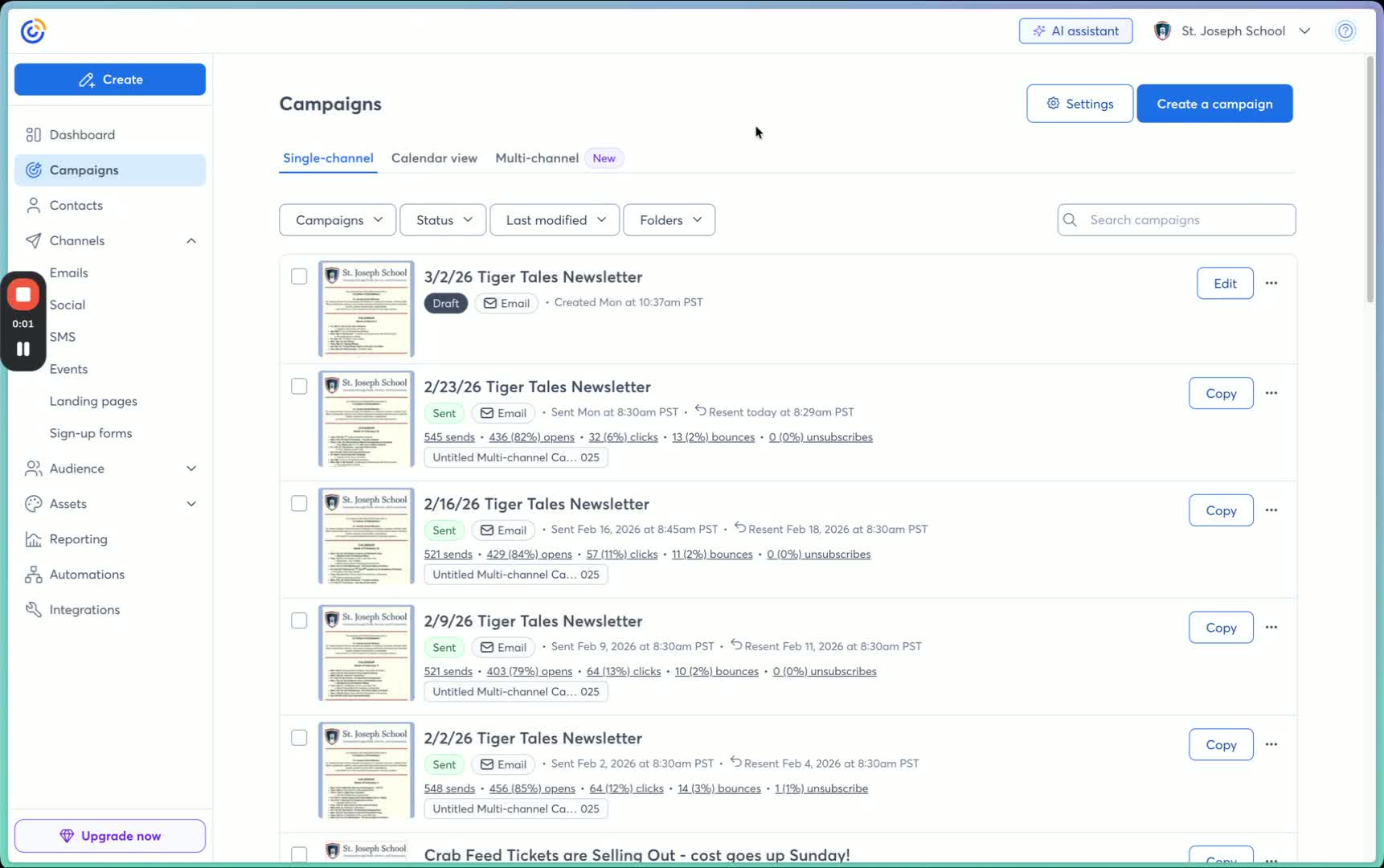
Open your web browser and navigate to the Constant Contact login page.
Enter your credentials to log in.
Access Campaigns 0:14
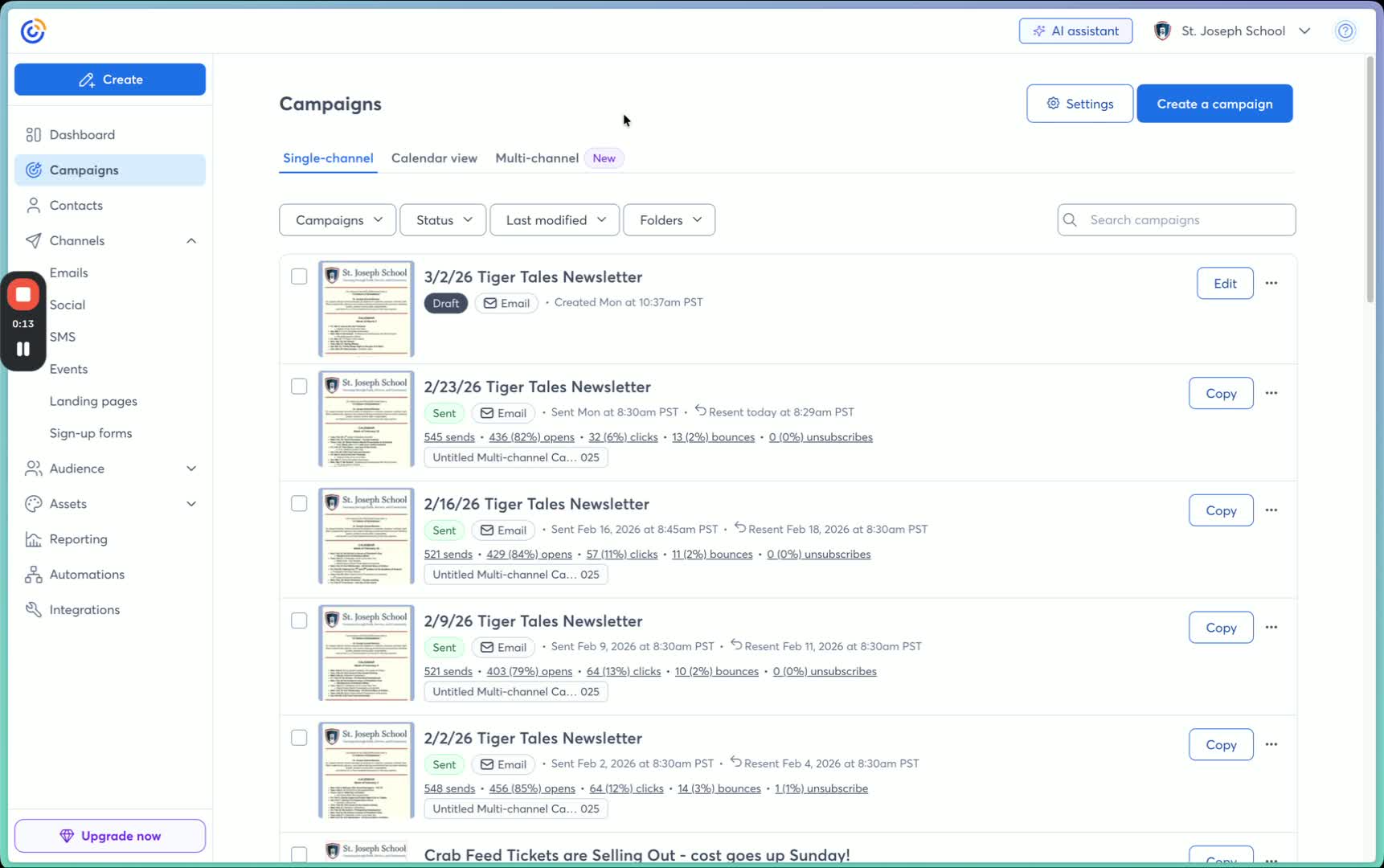
Once logged in, click on the 'Campaigns' tab.
This will display all previous communications.
Select the Most Recent Newsletter 0:25
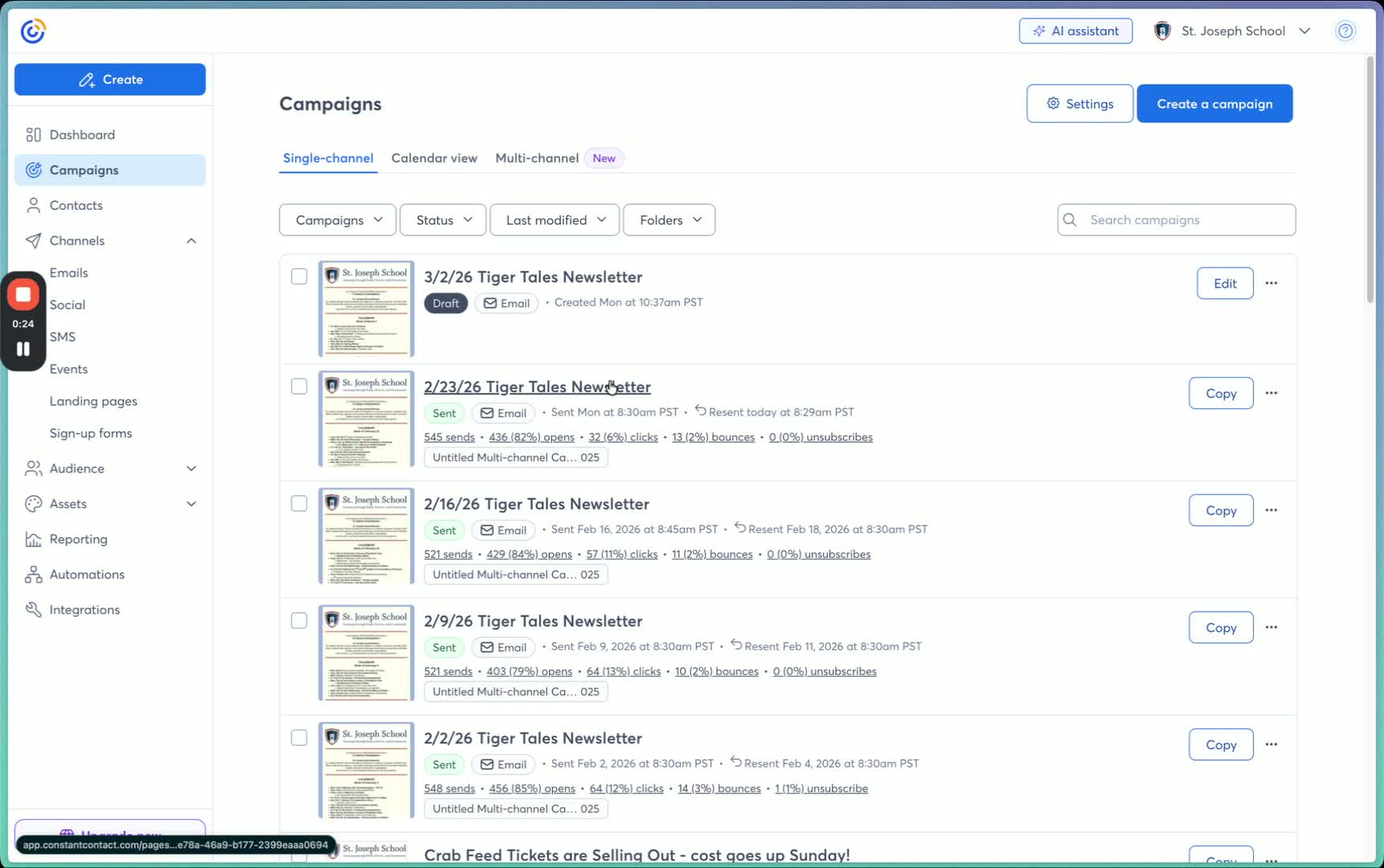
Locate the most recent newsletter that was sent out.
Avoid selecting any drafts.
Download the Newsletter 0:33
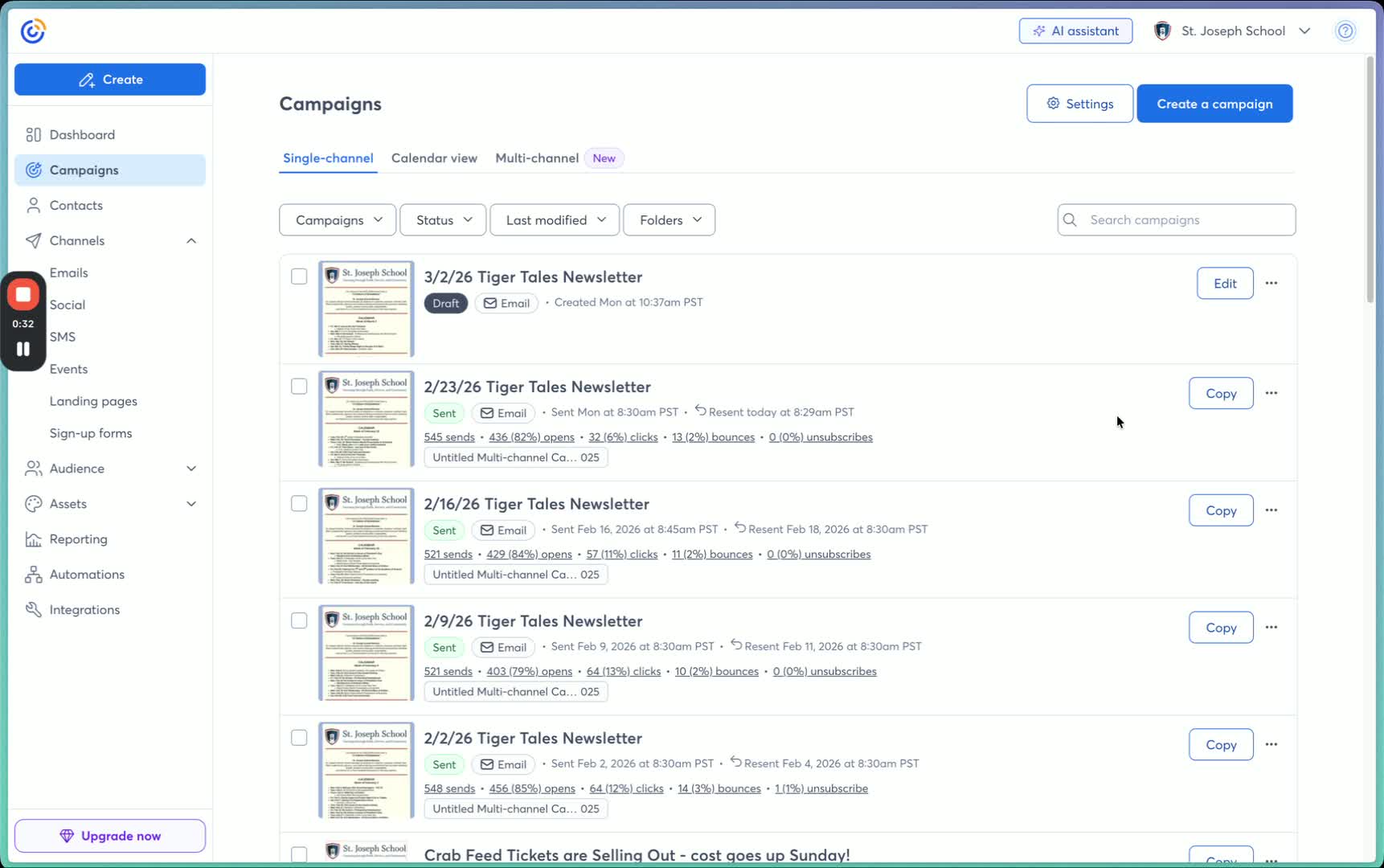
Click on the three dots on the right side of the selected newsletter.
Choose 'Download and Print' from the dropdown menu.
Choose PDF Format 0:43
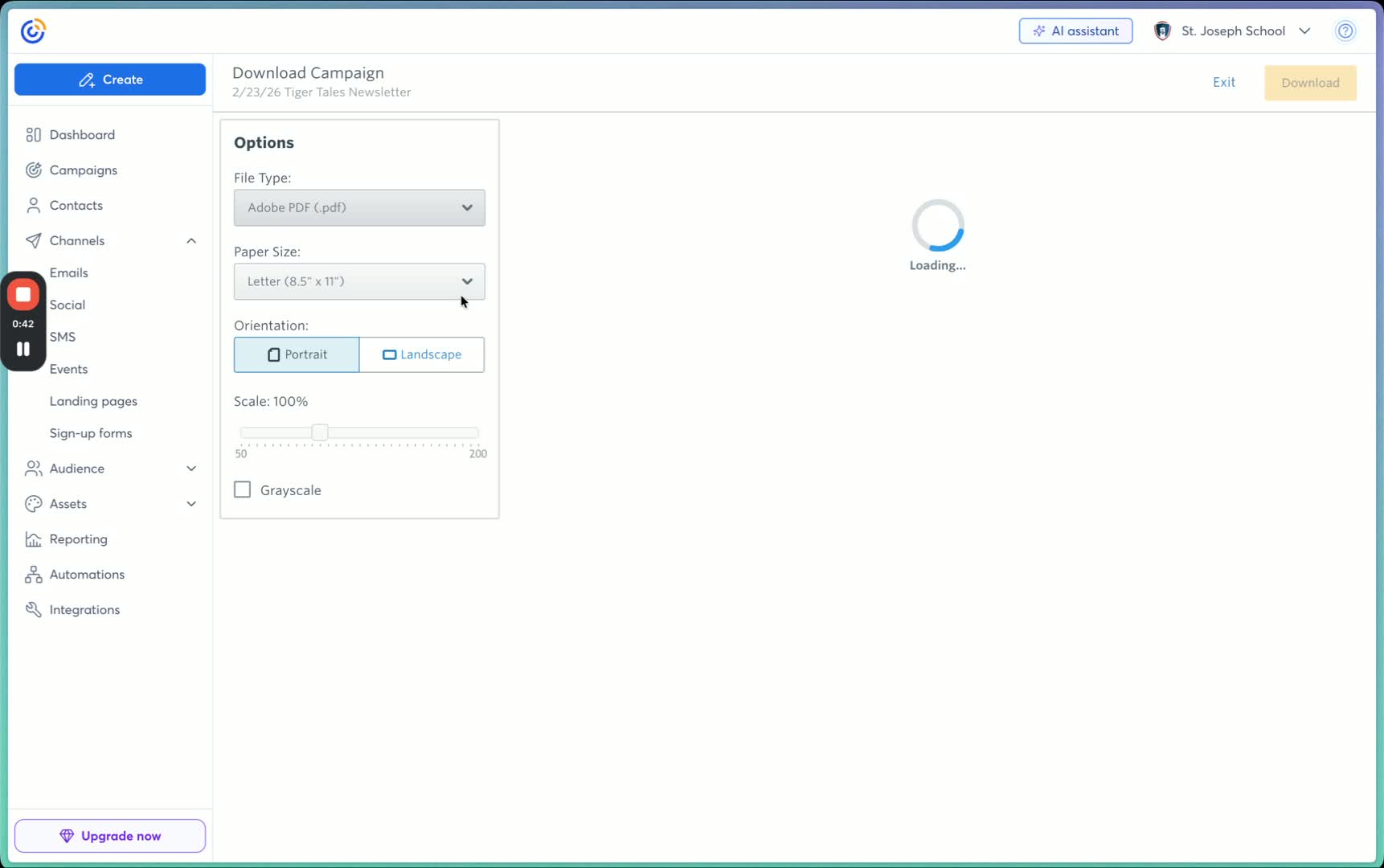
Wait for the document to load.
Ensure that the file type selected is Adobe PDF.
Verify Document Completeness 0:53
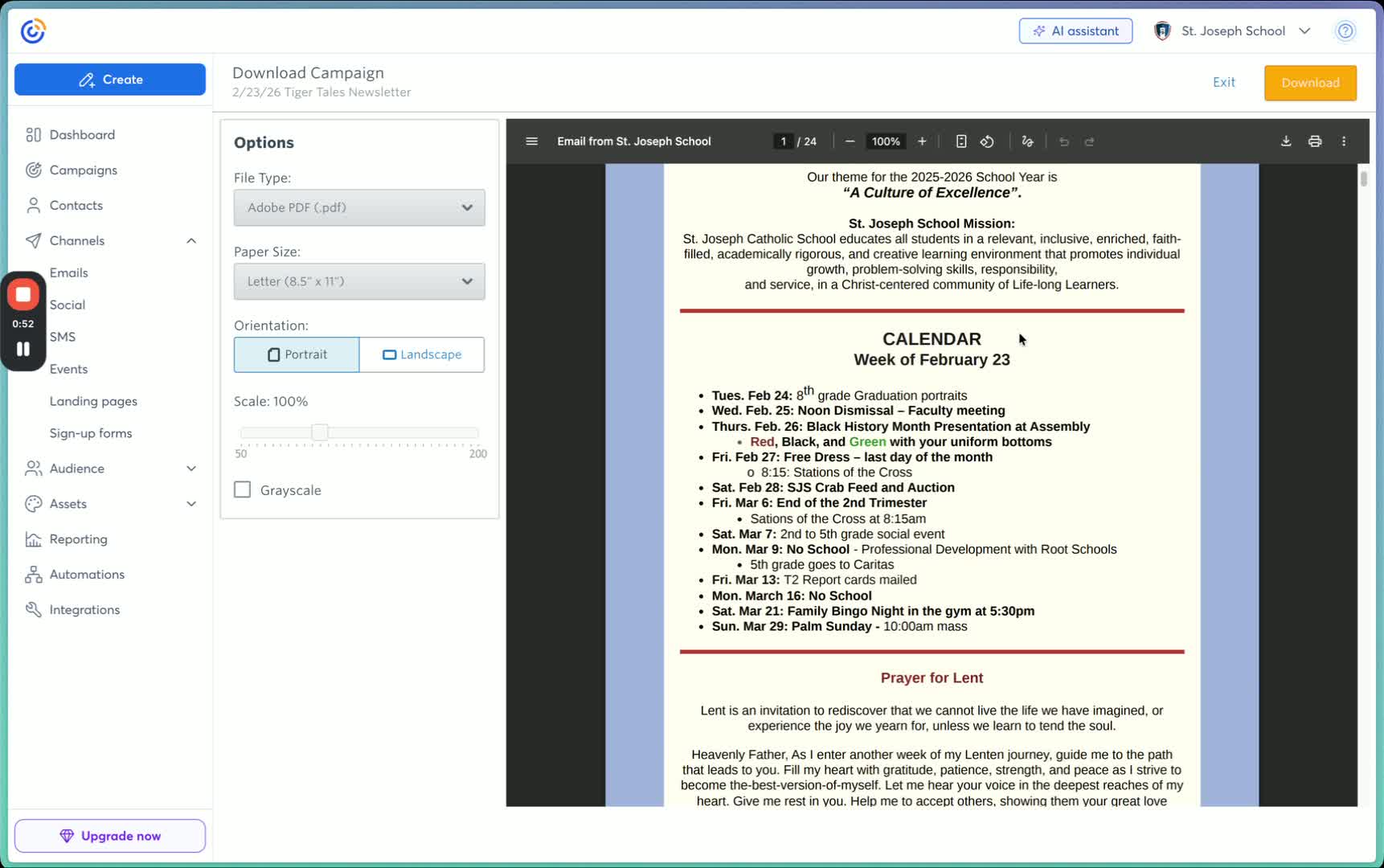
Check the preview on the right side to confirm the document is complete.
Ensure it includes the footer and visitor website.
Download the Document 1:03
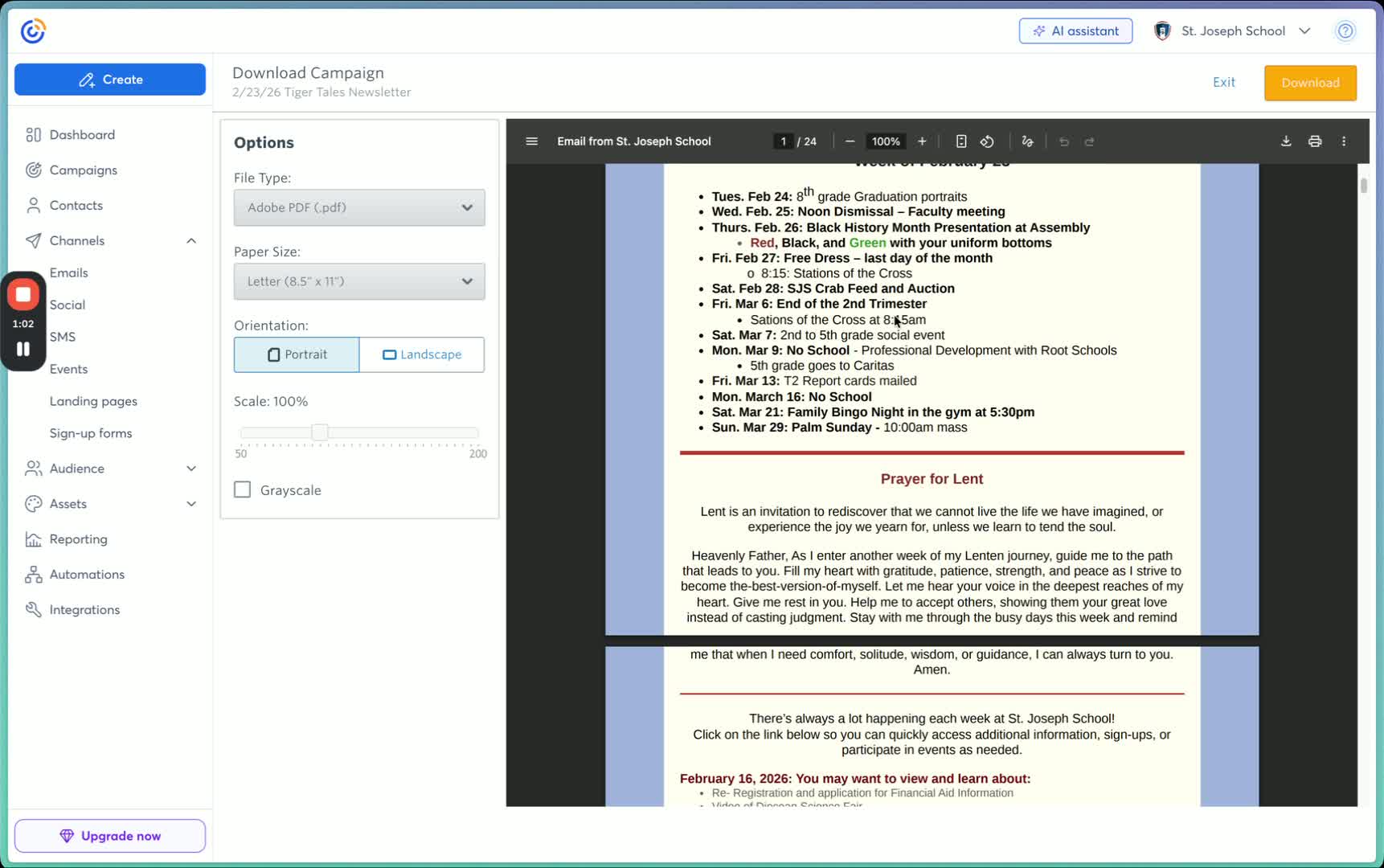
Scroll back to the top and click 'Download' to save the file.
Upload to Google Drive 1:37
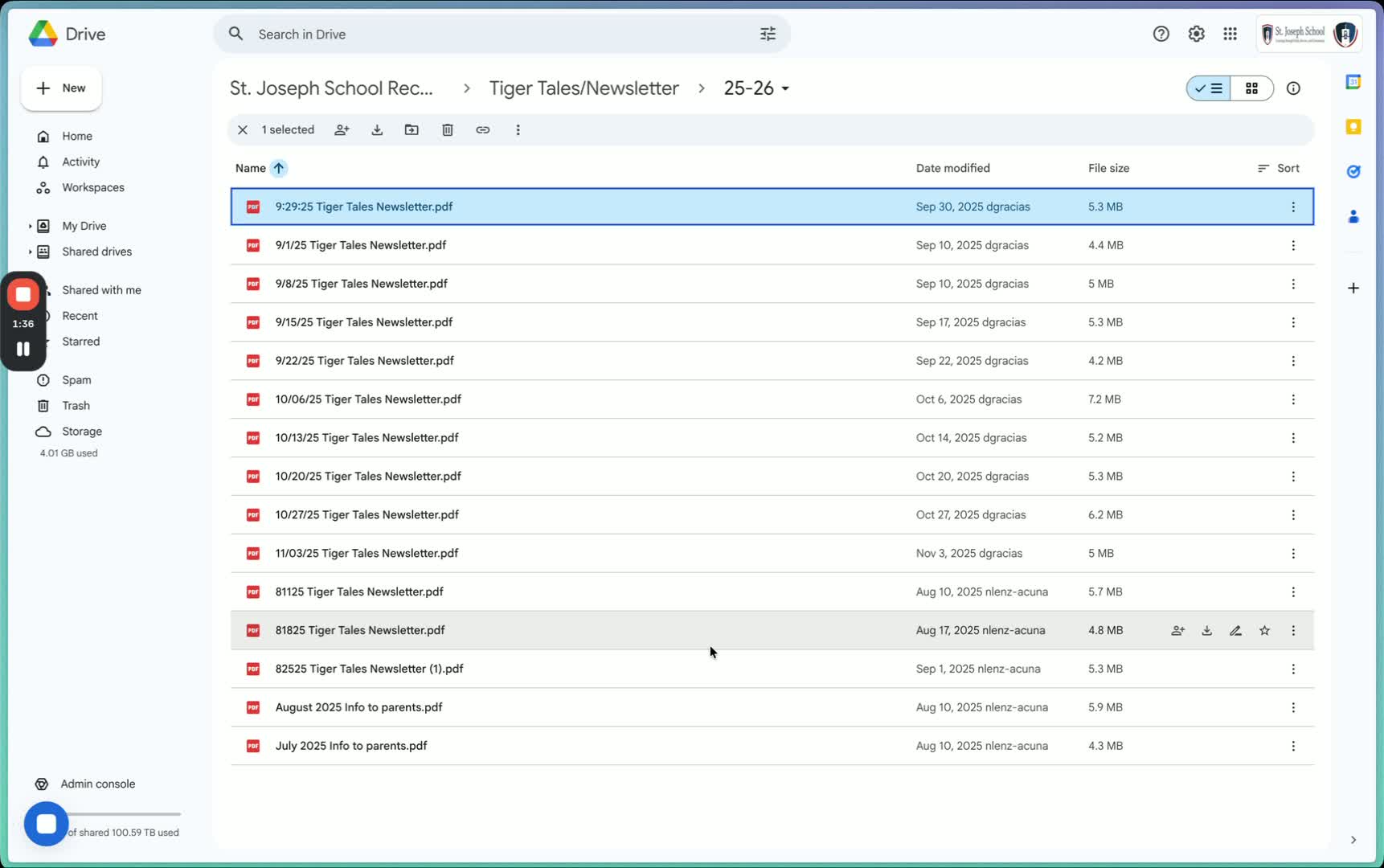
Navigate to your Google Drive folder.
Open the '2526 Squire Tiger Tails Newsletter' folder.
Upload the Downloaded File 1:48
You can either drag the downloaded file into the folder or use the 'New' button to select 'File Upload'.
Locate the most recent Tiger's Tail newsletter in your downloads.
Rename the File 2:00
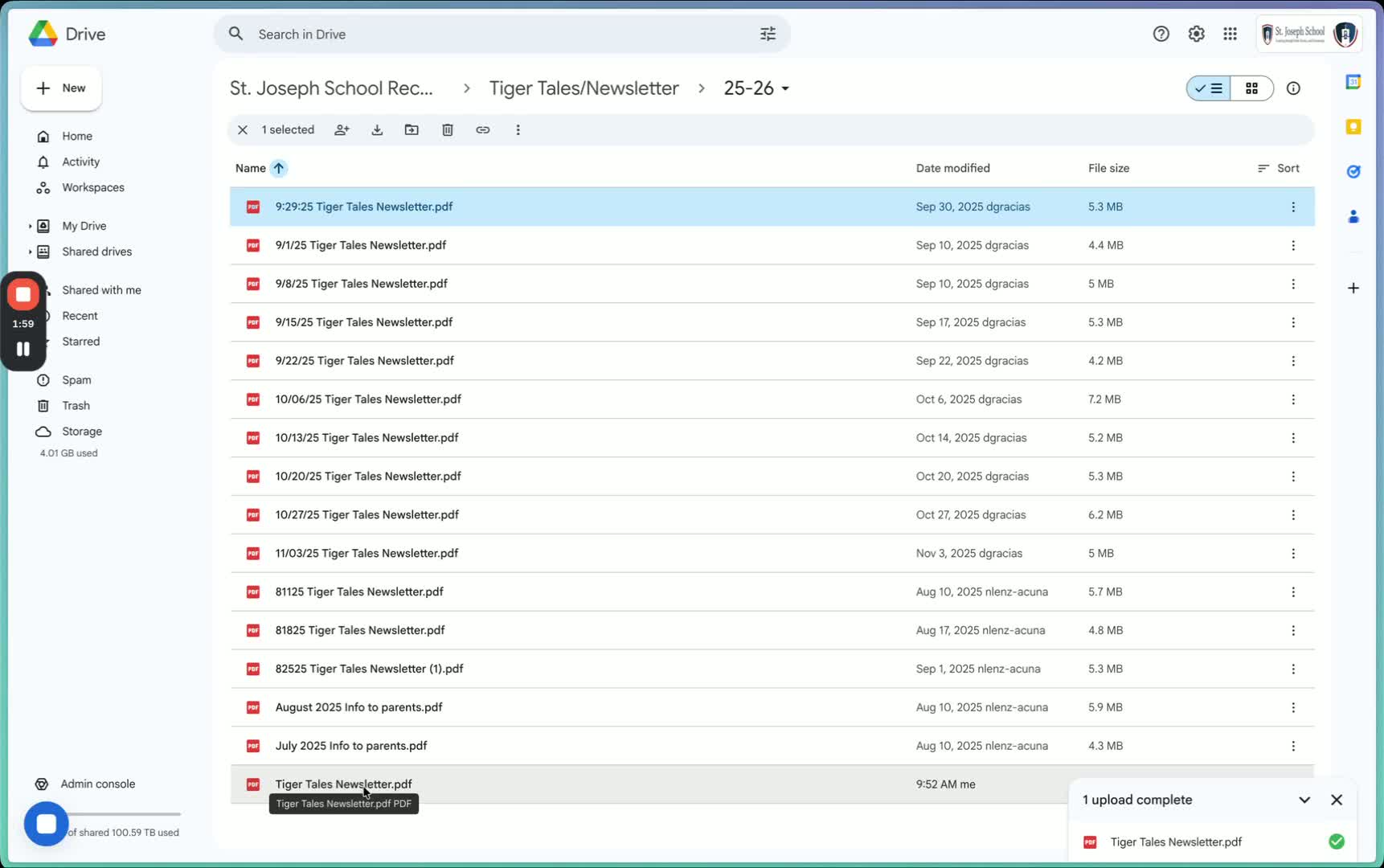
Right-click on the uploaded file and select 'Rename'.
Rename the file to include the correct date, e.g., '22326 Tiger Tail Newsletter'.
Cautionary Notes
Ensure that images are not converted to web images as they may not save correctly in Google Drive.
Always verify that the document is complete before downloading.
Tips for Efficiency
Familiarize yourself with the Constant Contact interface to speed up navigation.
Use keyboard shortcuts for renaming files to save time.
Link to Loom
Was this article helpful?
That’s Great!
Thank you for your feedback
Sorry! We couldn't be helpful
Thank you for your feedback
Feedback sent
We appreciate your effort and will try to fix the article