Step 1: Open Google Slides Presentation 0:01
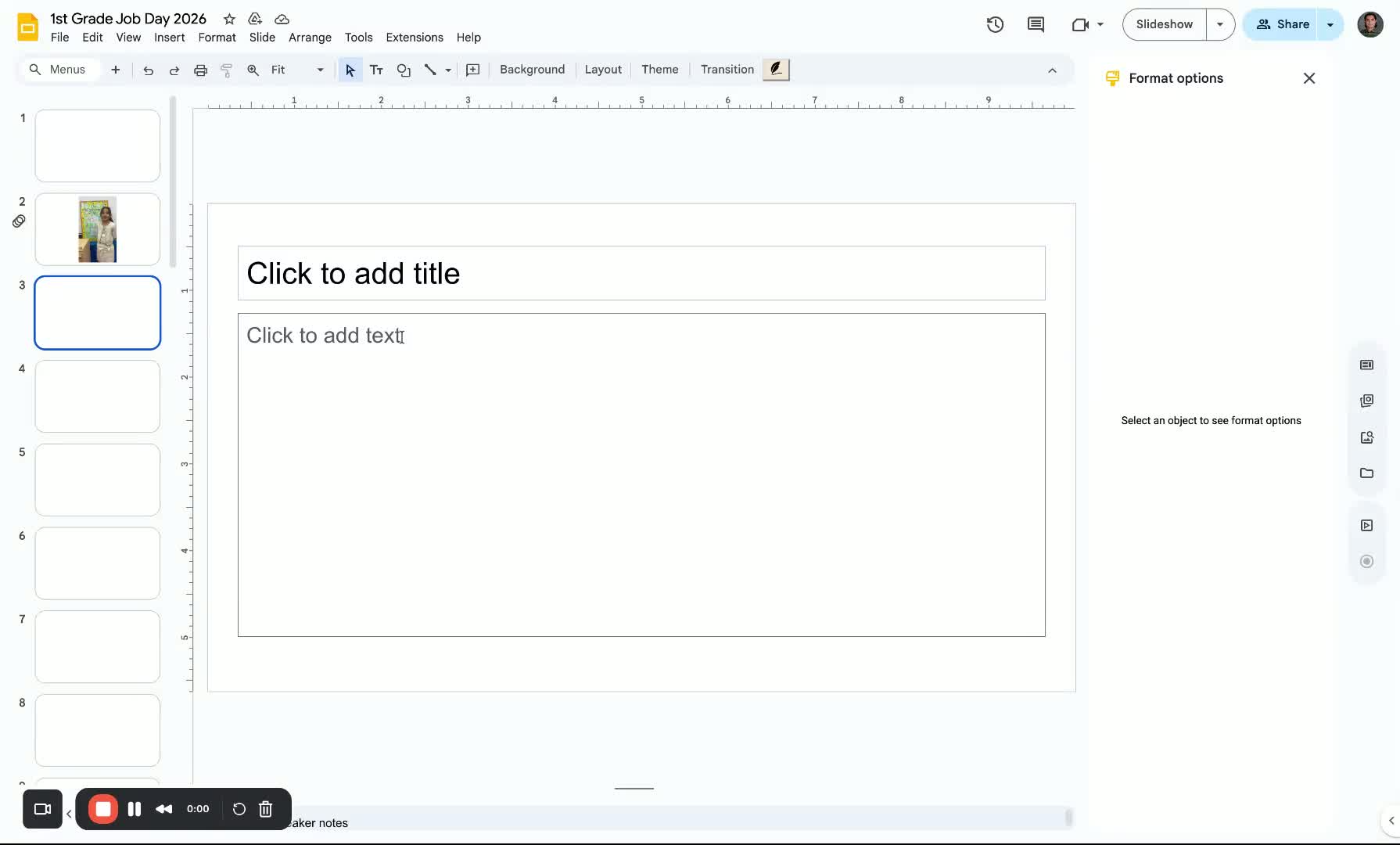
Open your Google Slides presentation.
Click on the slide where you want to add a video or photo.
Step 2: Insert Image or Video 0:17
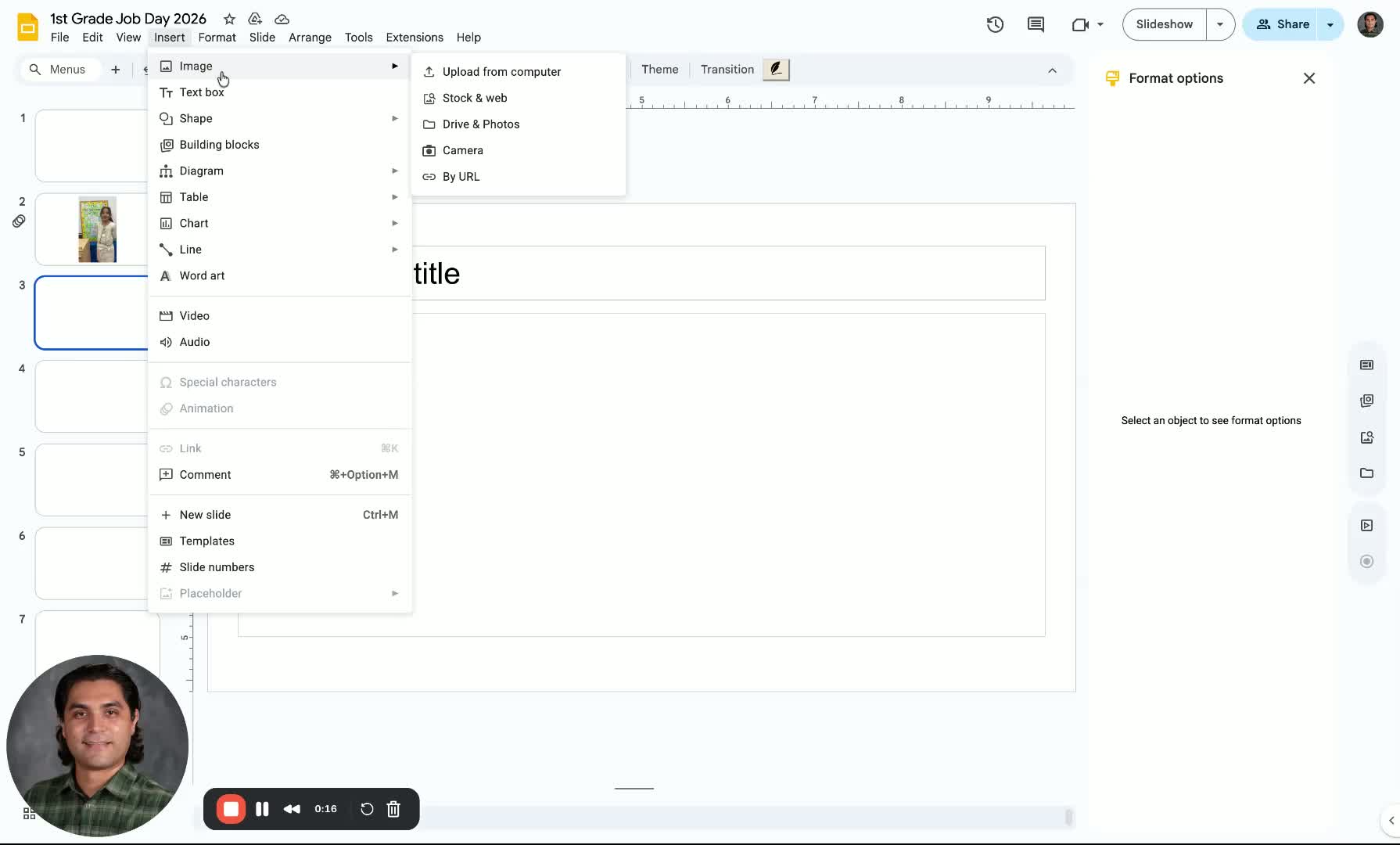
Click on the 'Insert' menu.
Choose 'Image' to upload from your computer, Google Drive, or by URL.
For adding a video, select 'Video' from the same menu.
Step 3: Locate Video File 0:30
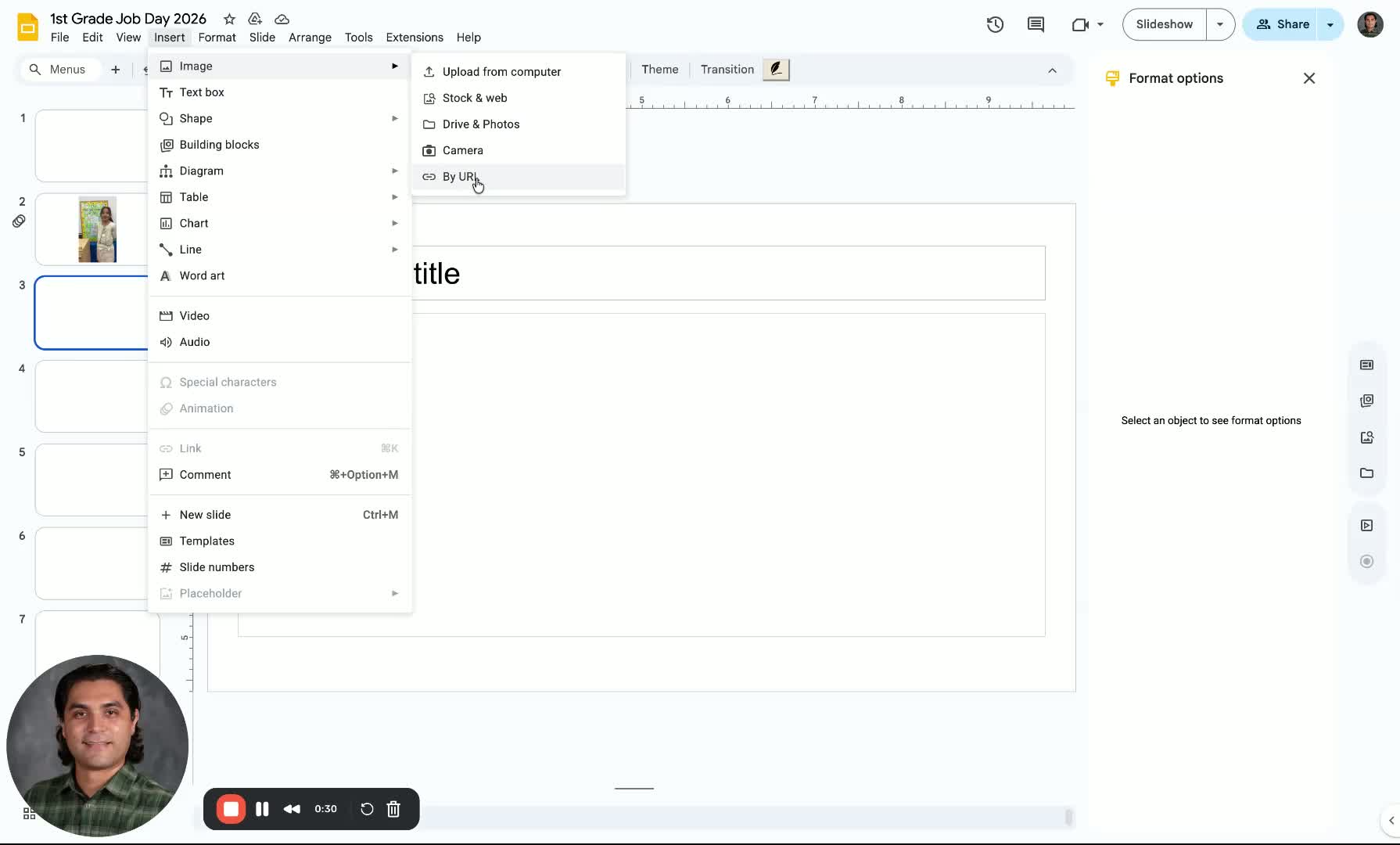
If adding a video, browse through your Google Drive or search for a YouTube video.
You can type in the folder name (e.g., 'first grade') to find your video quickly.
Step 4: Insert Video 0:59
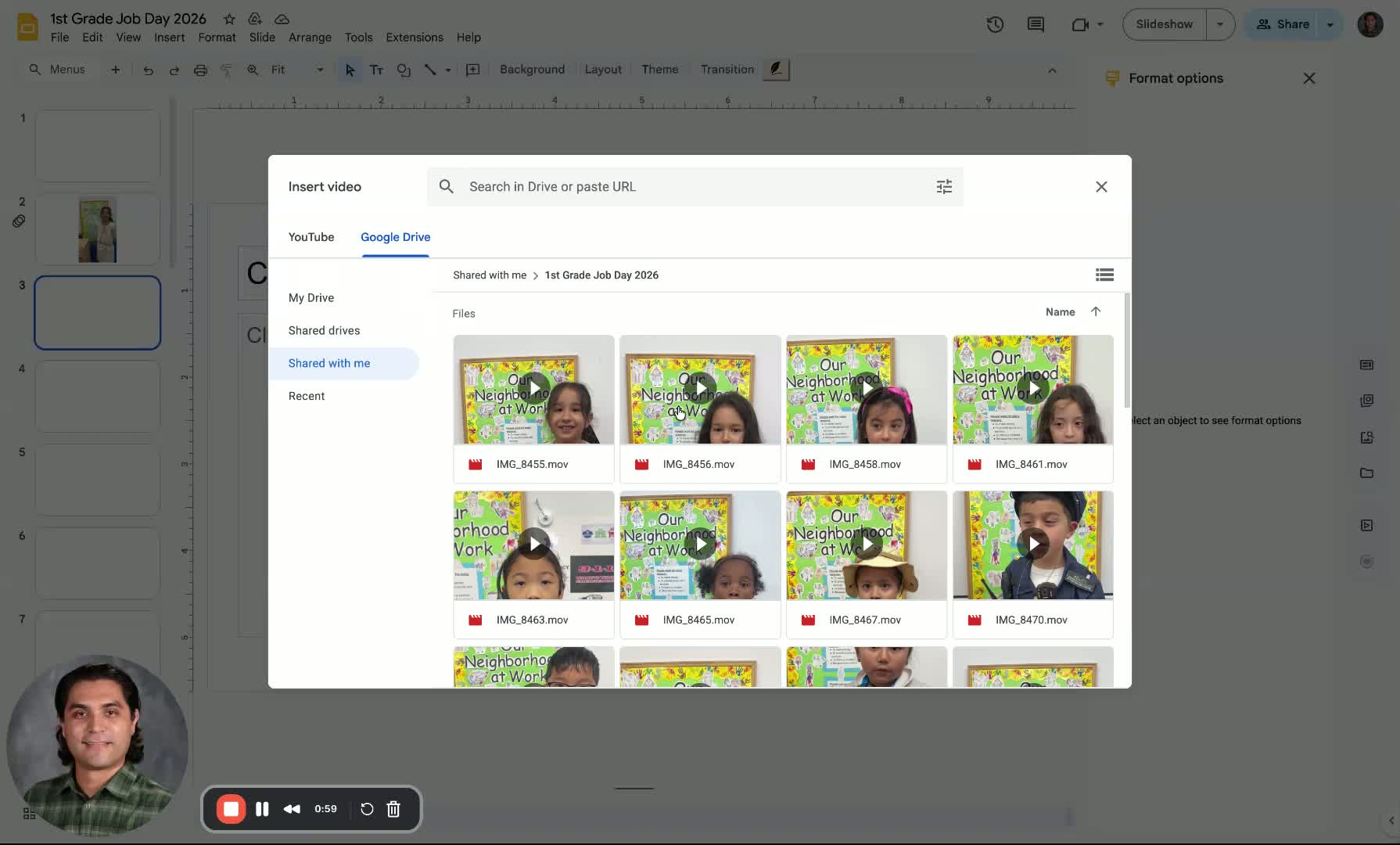
Click on the desired video and hit 'Insert'.
Note: Insert a different video for each slide if needed.
Step 5: Set Video Playback Options 1:05
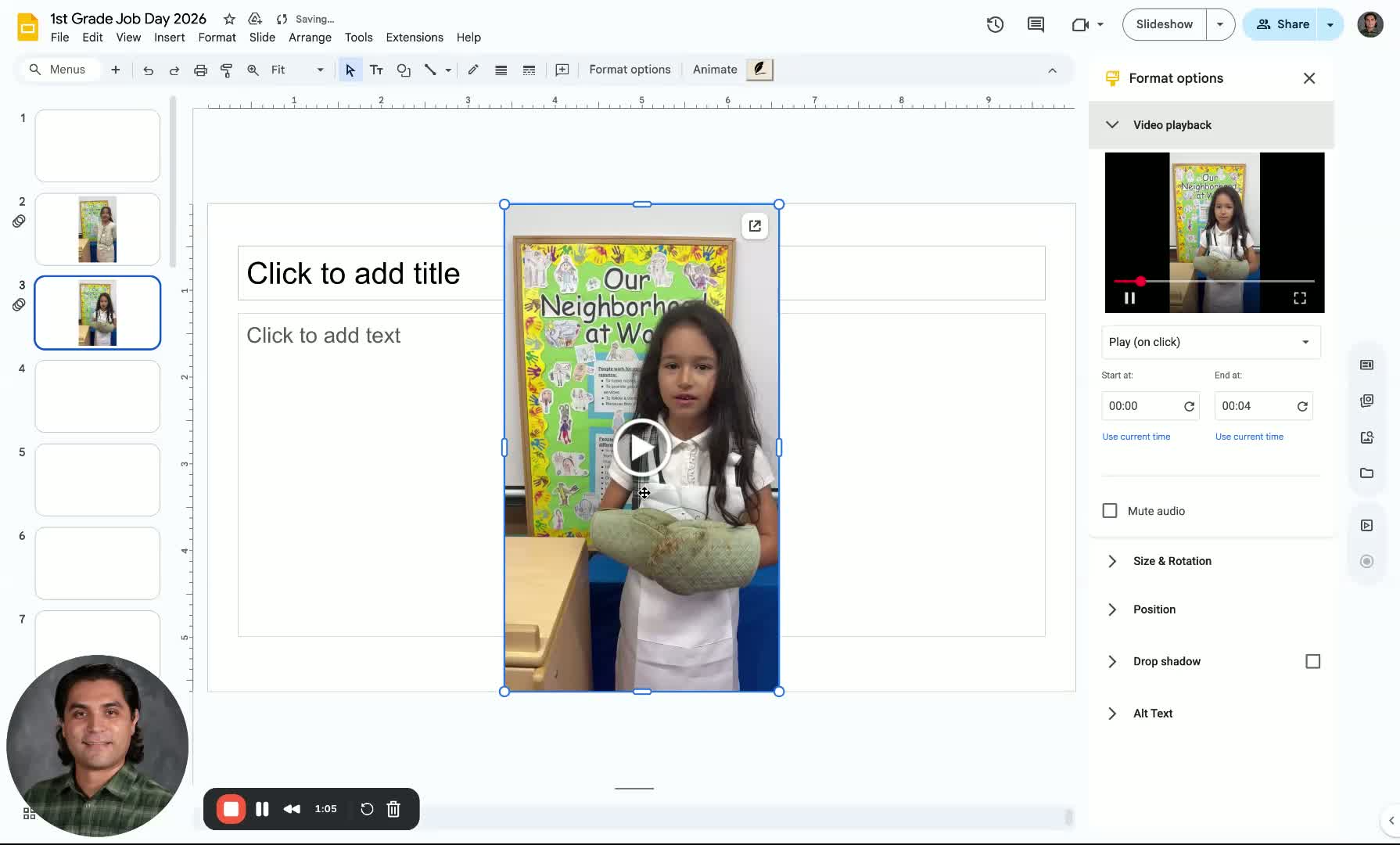
For automatic presentations, set the video to play automatically.
For manual presentations, set the video to play on-click.
Step 6: Test the Presentation 1:30
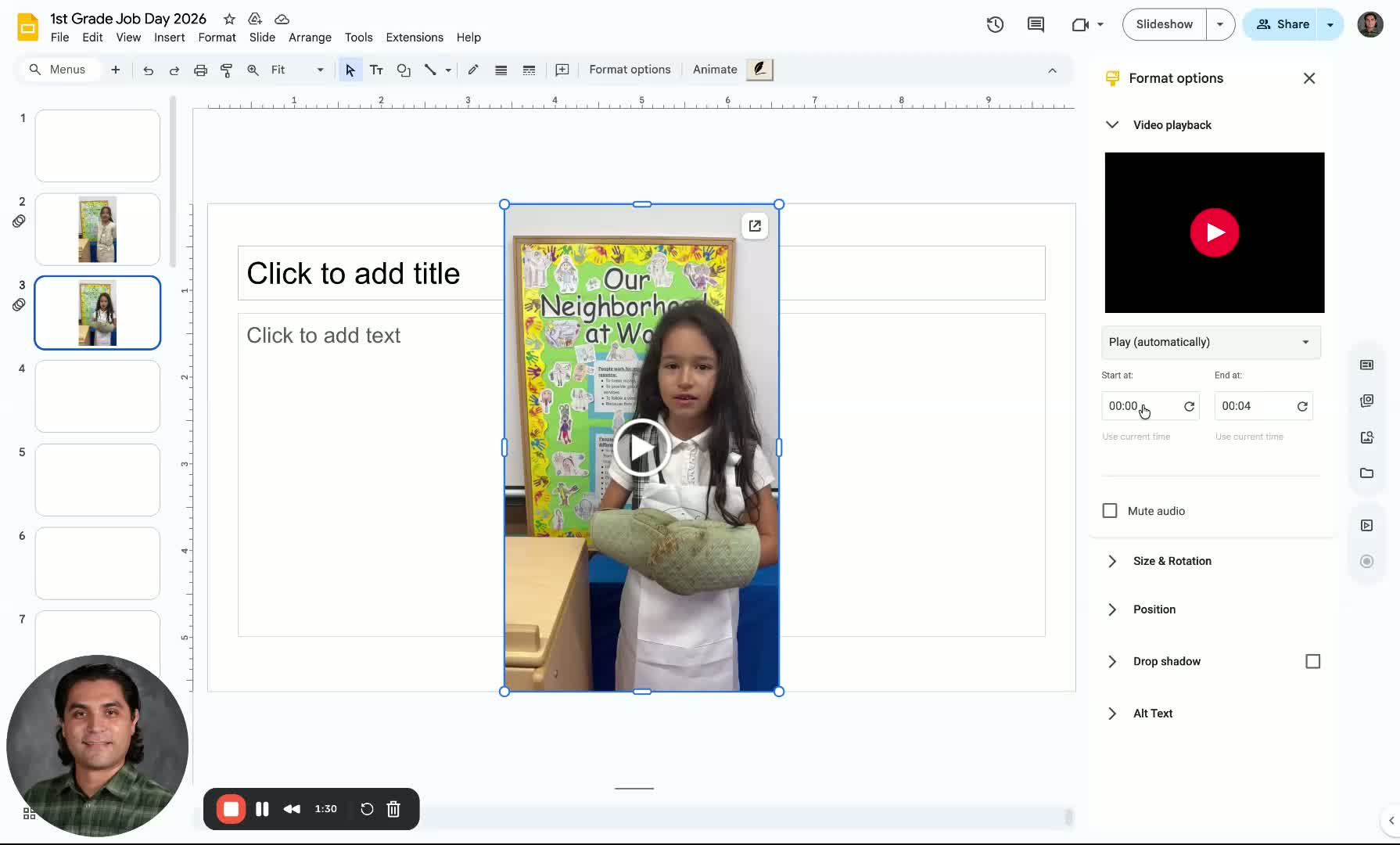
Click on 'Slideshow' to test the video playback.
Step 7: Adjust Video Settings 1:39
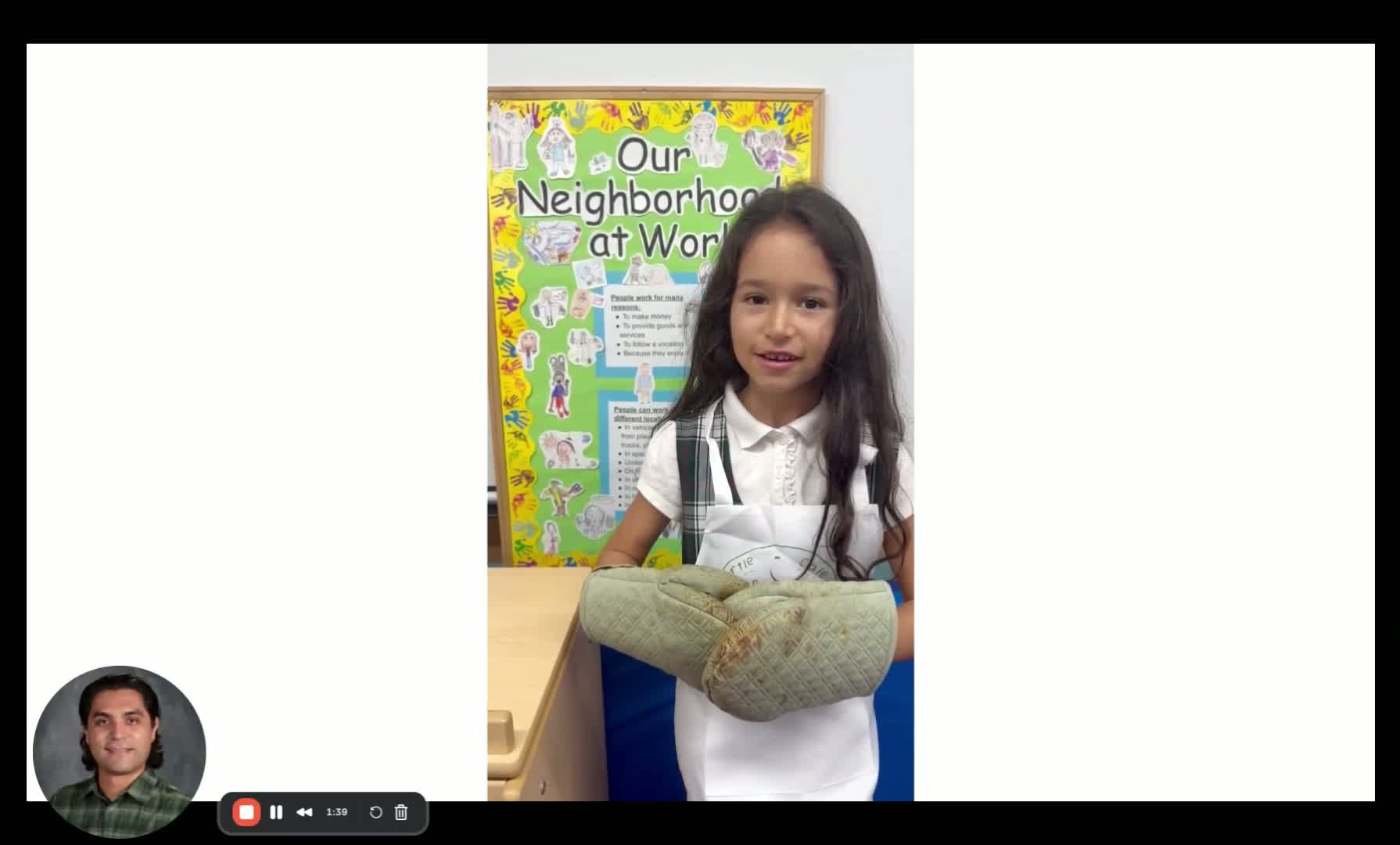
Click on the video to access settings.
Options include muting audio and resizing the video.
Step 8: Full-Screen Mode 1:51
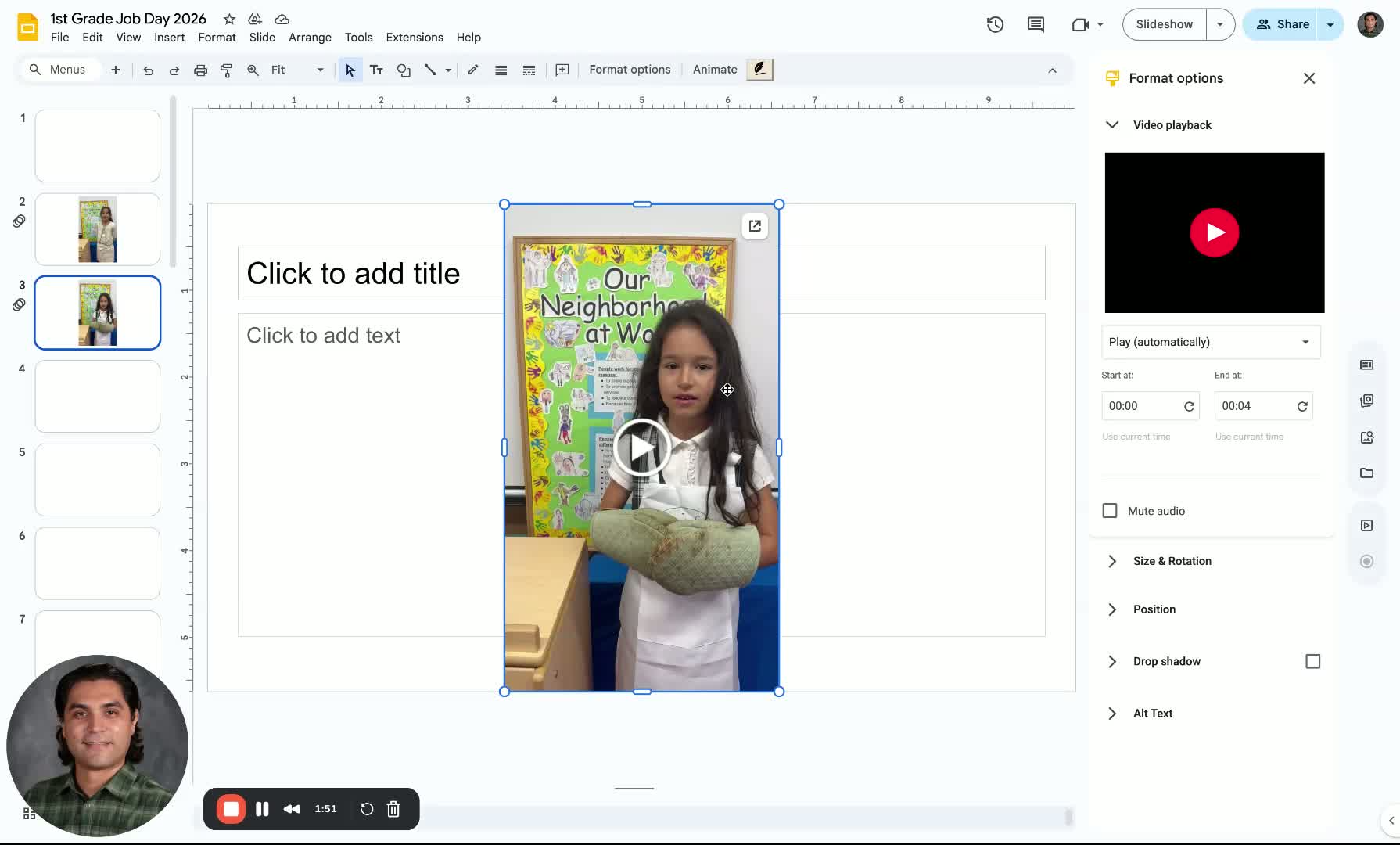
Most videos will automatically play in full-screen mode based on how they were captured.
Cautionary Notes
Ensure that the video file is compatible with Google Slides.
Check the internet connection if using YouTube videos to avoid playback issues.
Tips for Efficiency
Organize your video files in clearly labeled folders for easier access.
Familiarize yourself with the Google Slides interface to speed up the process.
Was this article helpful?
That’s Great!
Thank you for your feedback
Sorry! We couldn't be helpful
Thank you for your feedback
Feedback sent
We appreciate your effort and will try to fix the article