Teachers, please READ this entire article to ensure your classes are set up right
Logging In to GoGuardian
To log in to GoGuardian, you have two options. Go to teacher.goguardian.com "Log in with Clever"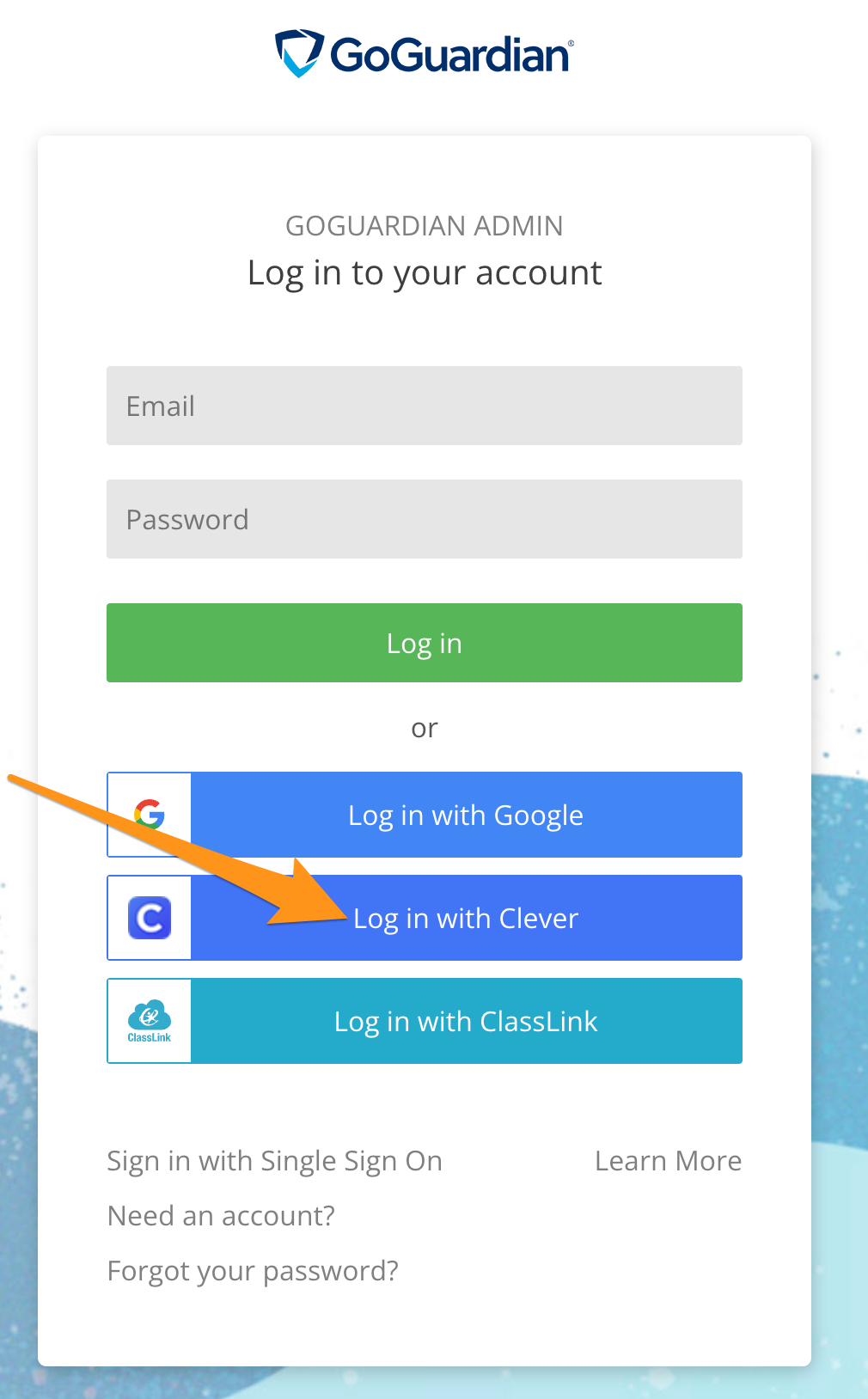
An alternate way to sign in is to go to clever.com/in/csdo and click on the "GoGuardian" app.
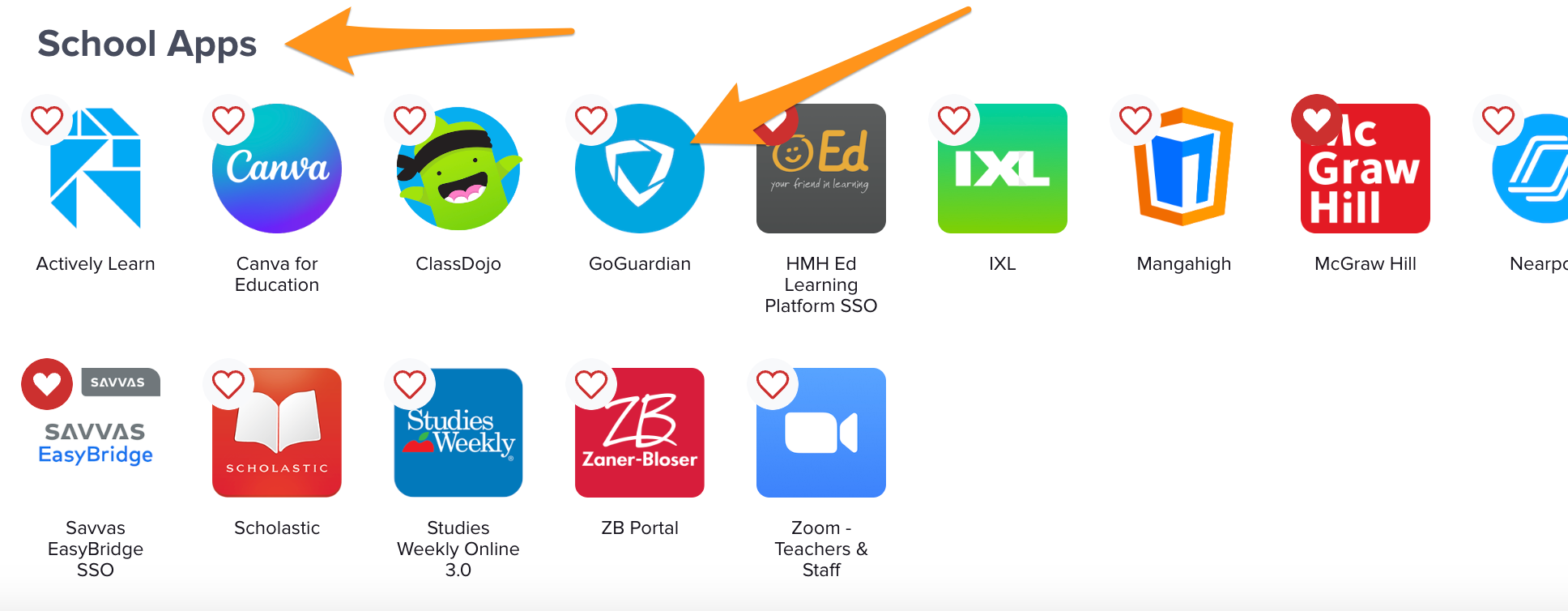
How to activate/add your GoGuardian Class
To activate your rostered class, follow these quick steps. As your class will appear in the "pending section," Step by step guide from GoGuardian - https://support.goguardian.
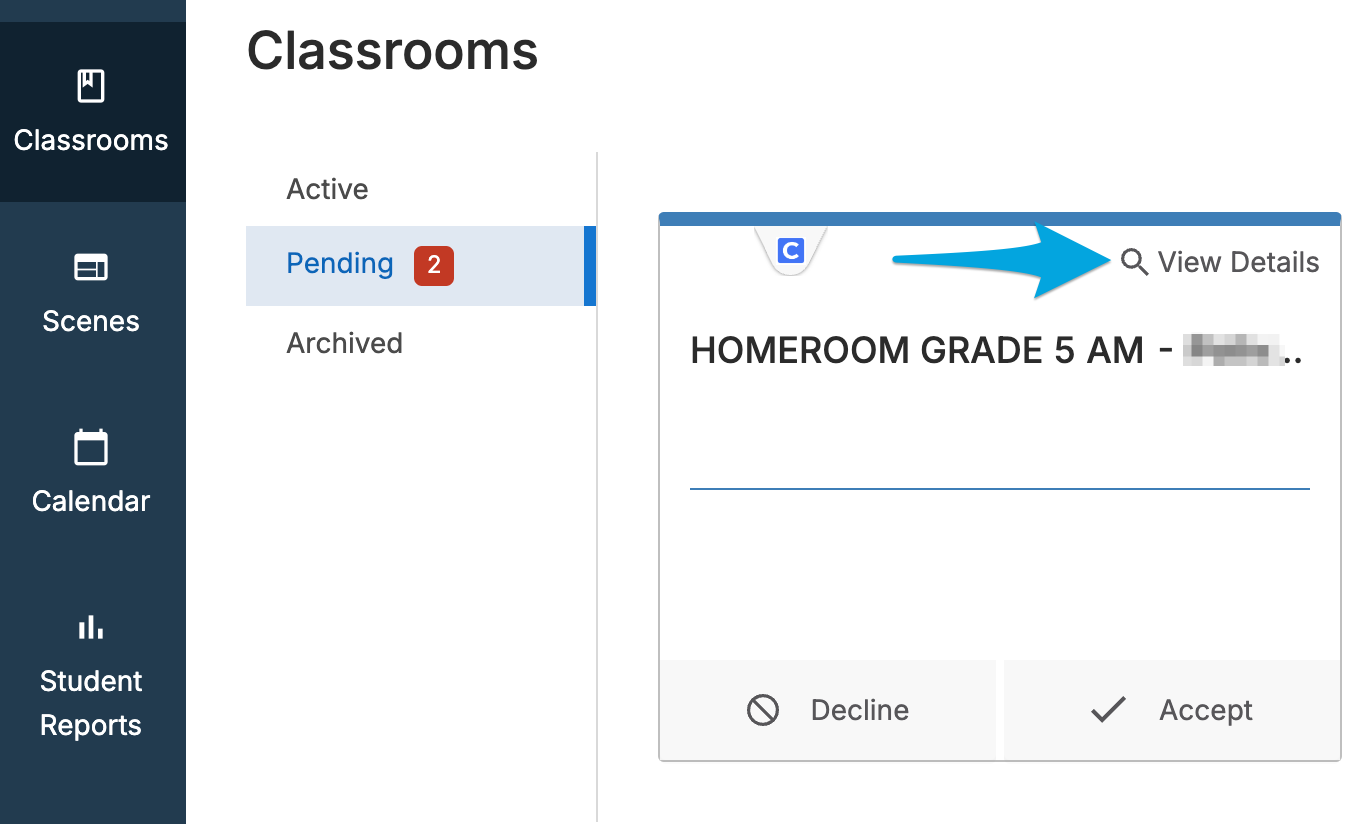
Teachers: Please work on completing the steps above as this is only visible to you.
2nd - 5th IAs: You are automatically set up in the class.
6th - 8th IAs: The Tech Team can add you manually once the lead subject teacher activates their course. The lead teacher can also add you manually. Middle school teachers place a ticket to let the Tech Team know once you activate your "pending" GoGuardian Classes.
Was this article helpful?
That’s Great!
Thank you for your feedback
Sorry! We couldn't be helpful
Thank you for your feedback
Feedback sent
We appreciate your effort and will try to fix the article