Student Device Requirements
Students are highly recommended to use a Chromebook or the Google Chrome Browser if using a Mac or Windows computer. If using a tablet, please download the Schoology App from your app store. For more information regarding using Google Chrome, see our guide here - Adding a Student Profile to Google Chrome
Student Login at Home 3rd - 8th Grade (For Clever badge login, scroll down)
- Go to our school website www.stjosephpinole.org
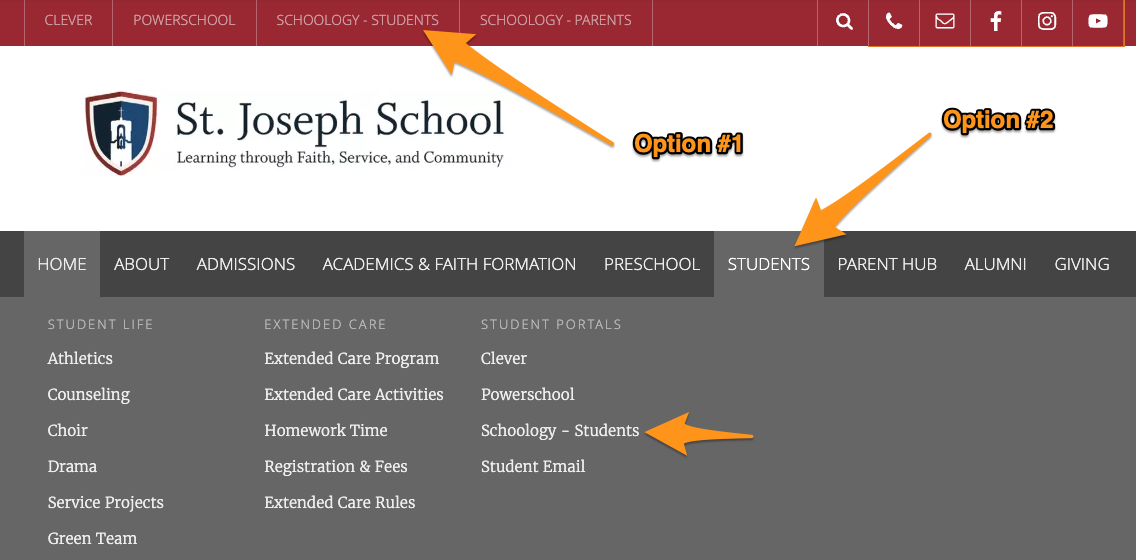
- Click on the "Schoology - Students" link or under the "Students" tab
- Enter the student @stjosephpinole.org email account & password
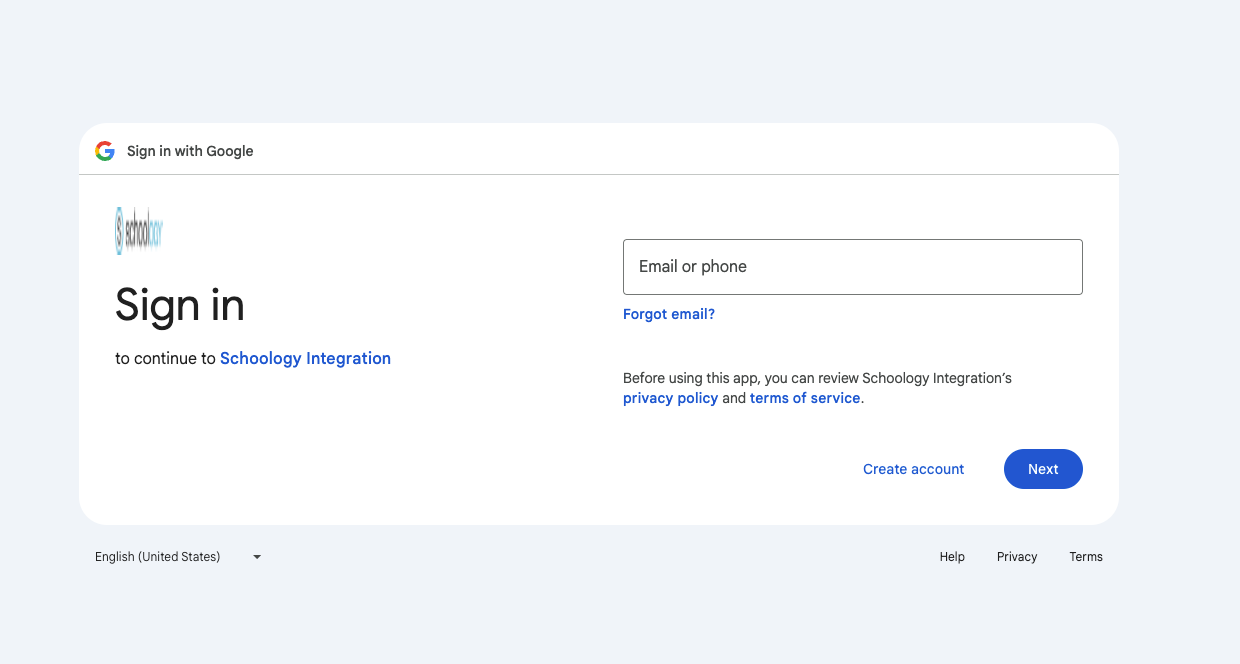
- Ensure you are
Student Login at Home TK - 3rd Grade
- Go to our school website www.stjosephpinole.org
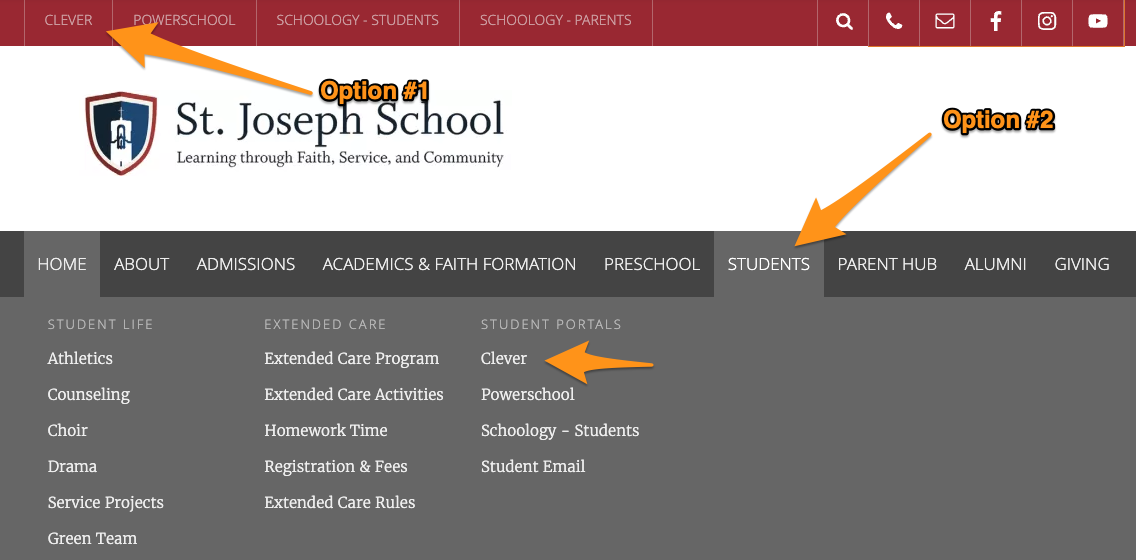
- Click on the "Clever" link or under the "Students" tab
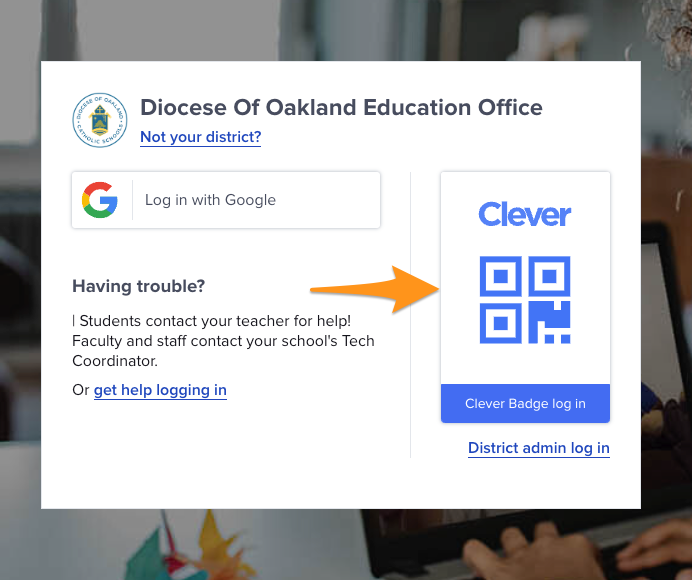
- Use your child's Clever badge which is connected to their student @stjosephpinole.org email account
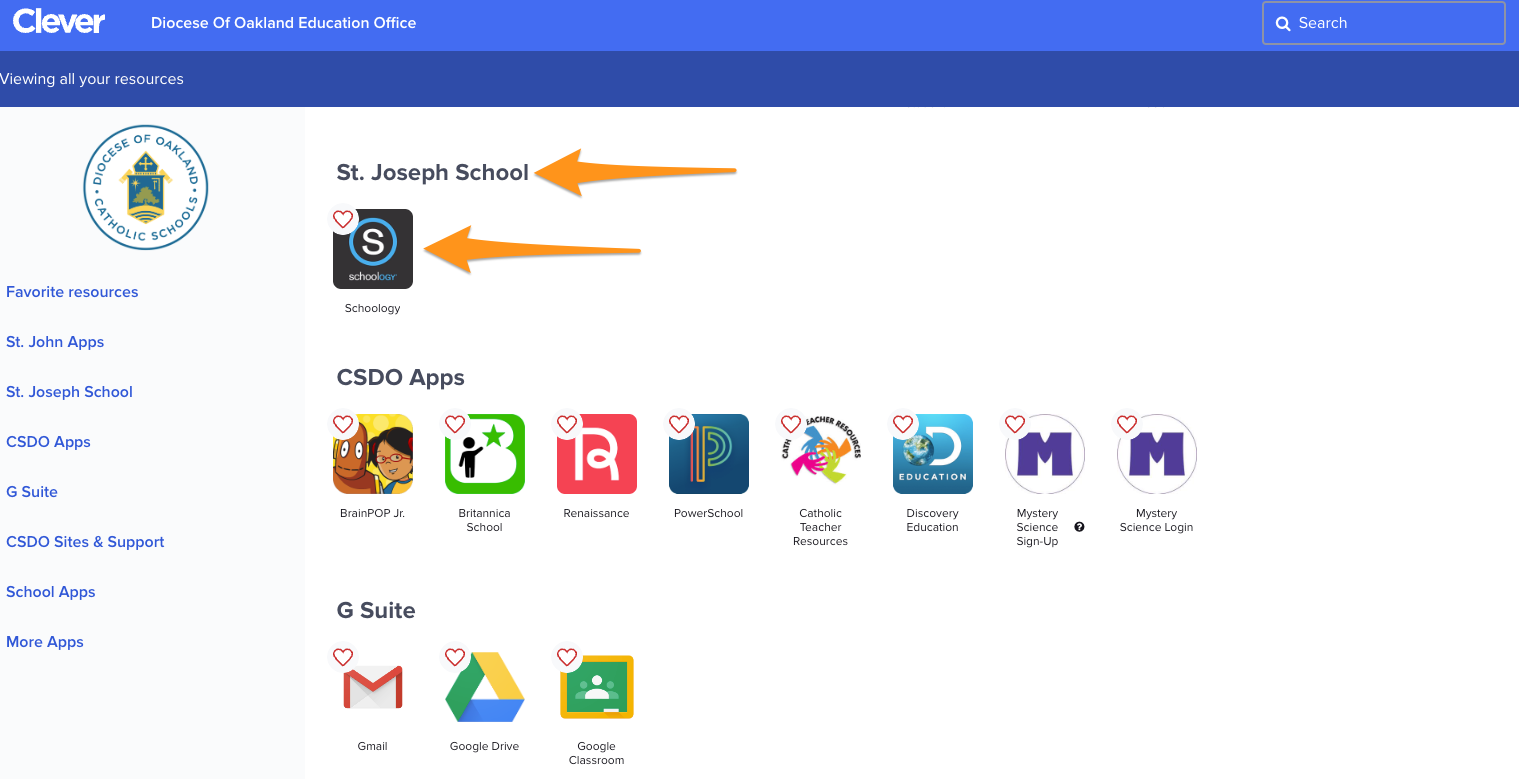
- Once on your home page in Clever, click on the Schoology App under the section "St. Joseph School." this will automatically take your child to their Schoology dashboard.
Was this article helpful?
That’s Great!
Thank you for your feedback
Sorry! We couldn't be helpful
Thank you for your feedback
Feedback sent
We appreciate your effort and will try to fix the article